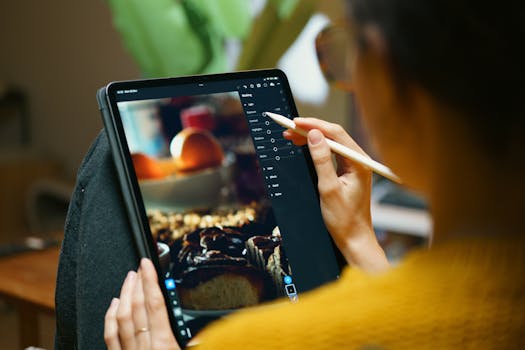
Editing high-megapixel photos is a unique challenge—one that’s vastly different from working with lower-resolution images. As camera sensors in smartphones and professional cameras consistently push beyond 30, 50, or even 100 megapixels, photographers and content creators are left searching for apps that can handle these massive files without sacrificing speed, stability, or editing flexibility. Whether you’re working with a 108MP shot from a flagship phone or a 61MP RAW file from a full-frame camera, the editing tools you choose can make or break your workflow. In this guide, we’ll explore the best apps for editing high-megapixel photos, compare their strengths, and help you find the right fit for your high-resolution needs.
Understanding the Demands of High-Megapixel Photo Editing
Before diving into app recommendations, it’s important to understand why high-megapixel images are so demanding. A single 61MP RAW file from a Sony A7R IV, for example, can weigh in at over 120MB. These files offer incredible detail and flexibility for cropping or large prints, but they also require serious processing power and optimized software.
Here are some key challenges with editing high-megapixel photos:
- File size: High-MP images can easily exceed 100MB each, especially in RAW format. - System requirements: Editing large files demands more RAM (16GB is often recommended) and a fast processor. - App optimization: Not all photo editors are built to handle such large files; some may crash or slow to a crawl. - Exporting and sharing: Saving edited versions, especially in TIFF or PSD formats, can produce files hundreds of megabytes in size.This is why choosing the right editing software is essential for anyone working with ultra-high-resolution images.
Top Desktop Apps for High-Megapixel Photo Editing
When it comes to heavyweight photo editing, desktop apps still reign supreme. Here are the leading contenders—and why they stand out for high-megapixel workflows:
Adobe Lightroom Classic - Handles RAW files from virtually every camera. - Non-destructive editing ensures original files remain intact. - Smart Previews feature allows you to work on lighter versions, saving memory. - Syncs with Adobe Cloud for cross-device editing. - Supports batch processing for large sets of high-res photos. Capture One Pro - Favored by professional studio photographers. - Exceptional color grading and tethered shooting capabilities. - Optimized engine for handling 100+ MP files (Phase One cameras regularly output 150MP images). - Custom profiles for color accuracy with specific camera models. - Superior layer-based editing and masking for detailed retouching. DxO PhotoLab - Industry-leading noise reduction (DeepPRIME) particularly beneficial for large, detailed images. - Advanced optical corrections using camera/lens profiles. - Fast export and batch processing for big files. - Smart Lighting and ClearView Plus features for maximizing dynamic range in large images. Affinity Photo - Budget-friendly one-time purchase. - Full PSD compatibility for complex, layered editing. - Handles files up to 32,000 x 32,000 pixels (over 1 billion pixels). - Intuitive interface for users transitioning from Adobe.These desktop apps are designed with high-megapixel files in mind, offering both stability and advanced editing features.
Mobile Apps That Excel with High-Resolution Images
The mobile revolution has brought powerful editing tools to our pockets. However, not all mobile apps are equipped to handle 50MP+ images. Here are the best mobile apps for editing ultra-high-res photos:
Adobe Lightroom Mobile - Supports RAW and JPEG editing directly on your phone or tablet. - Full integration with Lightroom’s cloud ecosystem. - Allows batch edits and copying of adjustments across images. - Handles files up to 200MP (device storage and RAM permitting). - Direct export to social media or cloud storage. Snapseed (by Google) - Free and widely compatible. - Supports RAW editing and exports up to 100MP on most devices. - Wide range of filters, selective edits, and healing tools. - Non-destructive workflow with re-editable “Stacks”. ProCamera (iOS only) - Designed for iPhones and iPads, but supports editing of imported high-res photos. - Advanced image adjustment tools, including curves and selective color. - Supports TIFF export and 48MP+ images on newer iPhones. Darkroom - Fast, intuitive, and optimized for iOS and iPadOS. - Works with RAW files from DSLRs, mirrorless, and smartphones. - Batch editing and export, including up to 100MP images on supported devices.While these apps are powerful, the editing experience on mobile will depend heavily on your device’s RAM and processor. Flagship smartphones and tablets from recent years are best equipped for the job.
Cloud-Based Solutions: Editing High-Megapixel Photos Anywhere
Cloud-based editors offer the convenience of editing from any device, but only a handful are up to the challenge of high-megapixel files. The main benefits are hardware flexibility and seamless collaboration. Here are the top options:
Adobe Photoshop on the Web - Brings Photoshop’s core tools to browsers. - Supports PSD files and high-res JPEGs (performance varies with internet speed). - Collaboration features for sharing and co-editing. - Best for smaller edits, touch-ups, or when away from a powerful desktop. Pixlr E - Free and premium versions available. - Can handle JPEG and PNG files up to 100MP (RAW not supported). - Advanced selection, retouching, and layer tools. - No installation required; works in any modern browser. Canva Pro - While not a traditional photo editor, Canva supports high-res images for design projects. - Useful for resizing, cropping, adding text, and exporting in multiple formats. - Handles images up to 100MP (20,000 x 20,000 pixels).While cloud editors are not yet a full replacement for desktop apps in high-megapixel workflows, they are increasingly viable for quick edits and collaboration.
Feature Comparison: Best Apps for High-Megapixel Editing
Choosing the right app often comes down to your specific workflow, device, and budget. Here’s a comparison of the top options discussed:
| App | Platform | Max Supported File Size | RAW Support | Batch Processing | Price Model |
|---|---|---|---|---|---|
| Adobe Lightroom Classic | Windows/Mac | Up to 200MP | Yes | Yes | Subscription ($9.99/mo+) |
| Capture One Pro | Windows/Mac | Up to 150MP+ | Yes | Yes | Subscription or One-time ($299+) |
| DxO PhotoLab | Windows/Mac | Up to 200MP | Yes | Yes | One-time ($139+) |
| Affinity Photo | Windows/Mac/iPad | Up to 1 billion pixels | Yes | No | One-time ($69.99) |
| Lightroom Mobile | iOS/Android | Up to 200MP$1Device hardware may limit actual supported file size.
Workflow Tips for Editing High-Megapixel PhotosEven with the best apps, working with high-megapixel images requires some workflow adjustments. Here are some expert tips to optimize your editing process: 1. Use Smart Previews or Proxies: Many desktop apps allow you to create lower-res previews for editing, then apply changes to the full-res file at export. This dramatically speeds up your workflow and reduces the risk of crashes. 2. Maximize RAM and Storage: For smooth editing, 16GB RAM is a practical minimum for high-megapixel workflows. SSD storage also helps with loading and saving large files quickly. 3. Keep Files Organized: Use clear folder structures, file naming conventions, and catalog software (like Lightroom) to manage your large photo libraries. 4. Export Smartly: Only export full-resolution files when necessary. For web or social media, resize and compress images to save space and bandwidth. 5. Backup Regularly: High-megapixel files are valuable and take time to recreate. Use both local and cloud backups to protect your work.These practices ensure that your editing sessions stay productive—regardless of how large your files get. Emerging Trends: AI and High-Resolution Photo EditingThe latest trend in photo editing is the integration of artificial intelligence (AI) and machine learning. AI-powered features are especially valuable for high-megapixel editing because they automate time-consuming tasks, such as: - AI upscaling: Apps like Topaz Gigapixel AI can increase resolution while preserving detail, useful for cropping or printing large. - Smart selections and masking: AI tools can quickly isolate subjects or backgrounds in massive images. - Automated retouching: Removing blemishes, noise, or distractions is faster and more accurate using machine learning.According to a 2023 report by Grand View Research, the AI photo editing market is expected to grow at a CAGR of 22.3% between 2022 and 2030, driven in part by the demand for processing increasingly larger image files. Many top apps, like Adobe Photoshop and Luminar Neo, are already adding AI-powered features specifically optimized for high-megapixel images, making advanced editing more accessible than ever. Best Apps for Editing High-Megapixel Photos: Key TakeawaysHigh-megapixel photography opens up incredible creative possibilities, but only if your editing tools can keep up. Whether you’re a professional photographer, a graphic designer, or an enthusiast working with the latest camera tech, choosing the right software is crucial. Desktop apps like Adobe Lightroom Classic, Capture One Pro, DxO PhotoLab, and Affinity Photo offer the most robust features for handling 50MP, 100MP, or even larger files. For editing on the go, Lightroom Mobile, Snapseed, and Darkroom provide surprising power—especially on modern smartphones and tablets. And for cross-platform convenience, cloud-based editors are quickly catching up. Remember: the best app for you depends on your workflow, hardware, and budget. As high-megapixel sensors become the norm, investing in optimized editing tools and efficient workflows will ensure you get the most from every pixel. FAQ Can my smartphone handle editing 100MP photos? Most flagship smartphones from the past two years can open and edit high-megapixel images, but performance will vary. For best results, use apps like Lightroom Mobile or Snapseed and ensure your device has ample RAM and storage. Do I need a high-end computer to edit 50MP+ photos? While a high-end computer isn’t strictly necessary, editing large files is much smoother with at least 16GB of RAM, a modern multi-core processor, and SSD storage. Lower-spec machines may struggle with speed and stability. Are there free apps for editing high-megapixel photos? Yes! Snapseed (mobile) and Pixlr E (web) are free options that support editing of high-resolution images, though they may have some limitations compared to paid desktop apps. What’s the main advantage of high-megapixel editing apps? These apps are optimized to handle large file sizes without crashing, offer advanced features like RAW editing and batch processing, and provide tools for preserving detail and color accuracy in massive images. How do I reduce file size without losing quality after editing? Use export or save-as options in your editing app to resize images, adjust JPEG compression, or convert to more efficient formats like HEIF. For web use, reducing dimensions to 2000-4000 pixels on the long edge usually preserves quality while shrinking file size. More from the archiveView full article archive →
megapixeldi.com
Unlock Razor-Sharp Photos: Mastering High-Resolution Image Clarity
megapixeldi.com
Best 13MP Cameras for Travelers: Capture Your Adventures in 2024
megapixeldi.com
Understanding Megapixels: The Key to Stunning Photo Prints
megapixeldi.com
Unlock the Power of Your 13MP Camera: Expert Setup & Shooting Tips
megapixeldi.com
Top 10 Mobile Apps for Editing High-Resolution Photos in 2024
megapixeldi.com
Unlock the Secrets: How Lighting Shapes High-Resolution Photo Quality
megapixeldi.com
Mastering File Formats: Key to Perfect High-Resolution Photos
megapixeldi.com
Master High-Resolution Landscape Photography: Techniques & Tips |